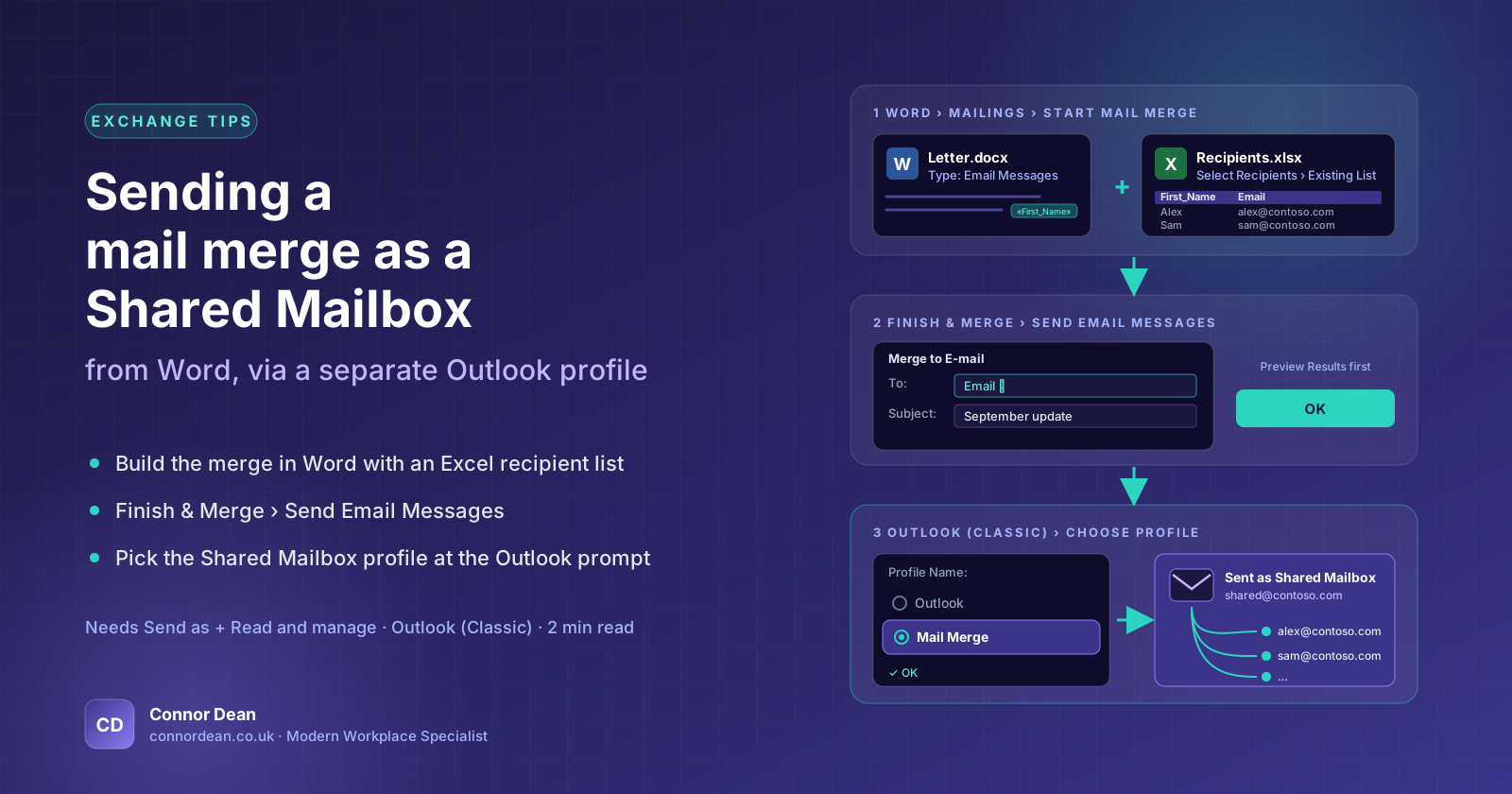
Exchange Tips: Logging into a Shared Mailbox with a user's account on a separate profile
Written by Connor Dean | Modern Workplace Specialist
Intro
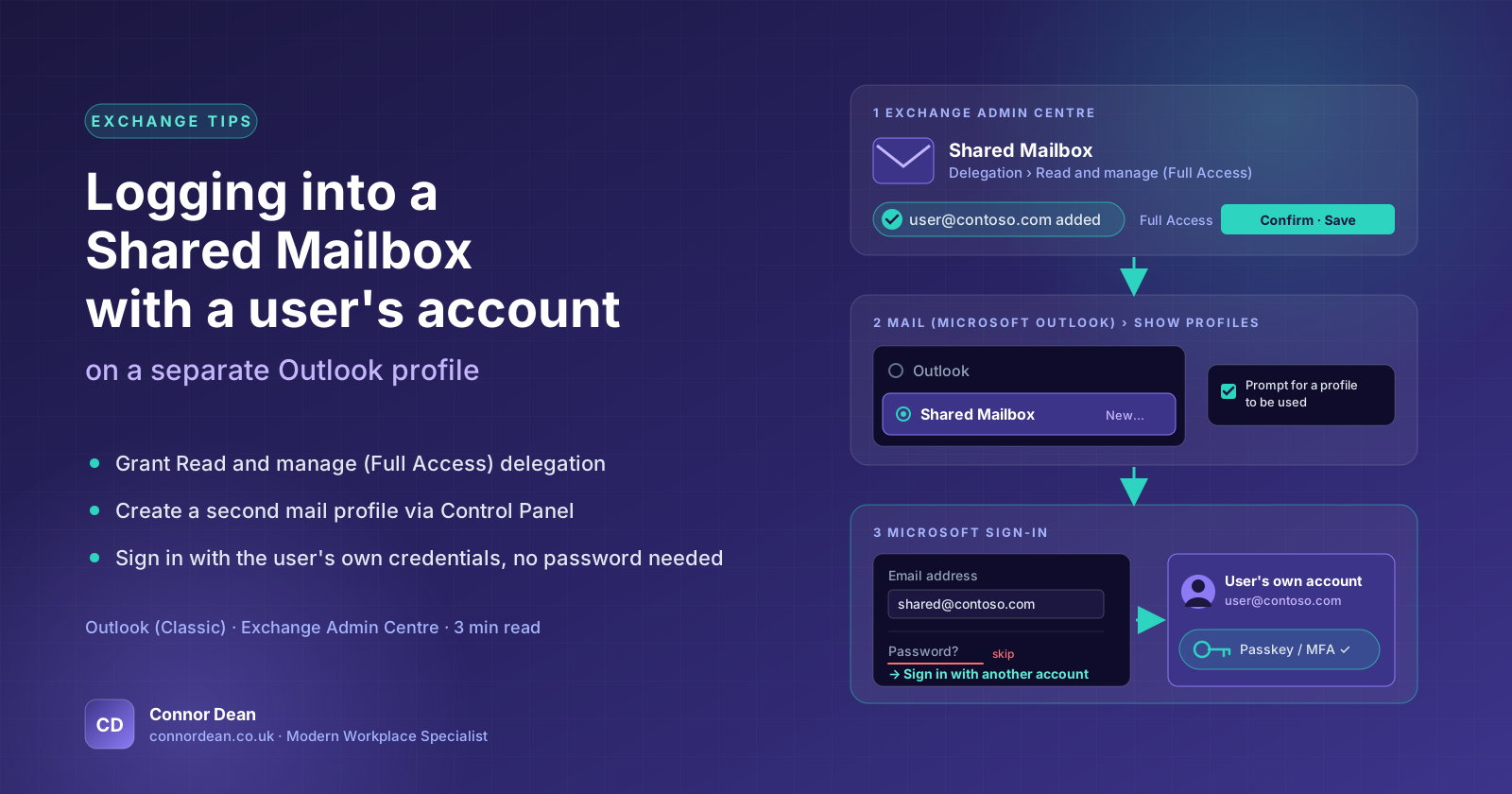
This is a quick guide to explain what is required to allow a user to log into a Shared Mailbox in a separate mail profile.
The first part covers the permissions required and where to assign.
The second shows how to log the user in on their device using a separate outlook profile. This applies to Outlook (Classic).
Providing the correct access
A pre-requisite for this is Exchange Administrator or the necessary permissions with Exchange Admin Centre to:
- Assign delegated mailbox permissions - Send as + Read and manage (Full Access)
Login to https://admin.cloud.microsoft/exchange.
Navigate to your mailbox which you wish to access. I am doing a mail merge test so that's my chosen mailbox.
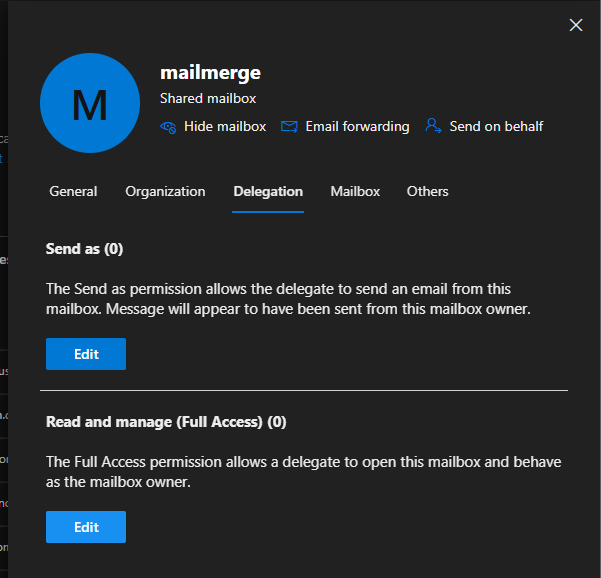
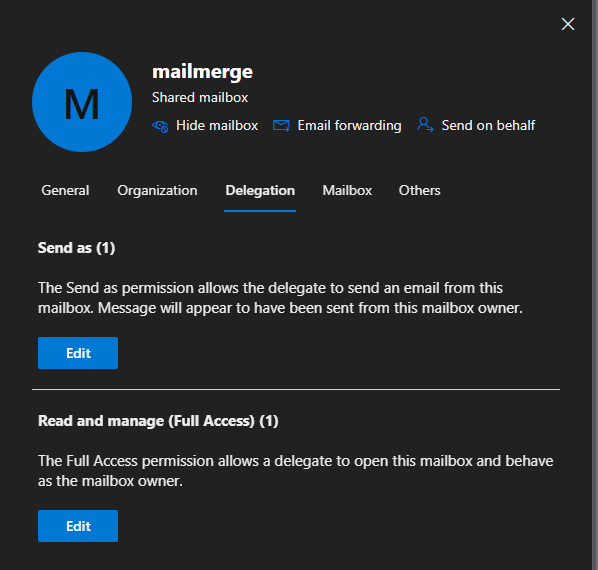
Under Delegation, select the 'Edit' button under Send as.
Then click 'Add members' and find your user to grant access, then click 'Confirm' and 'Save.
Then click 'Add members' and find your user to grant access, then click 'Confirm' and 'Save.
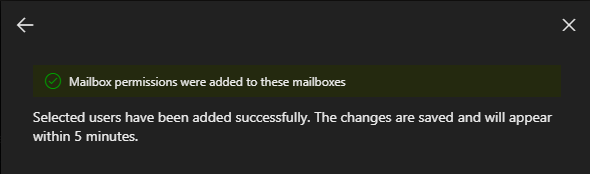
Perform the same steps for Read and manage (Full Access).
You will see the Send as + Read and manage (Full Access) reflect the new user.
Logging into the mailbox
On the user's device, navigate to the Control Panel.
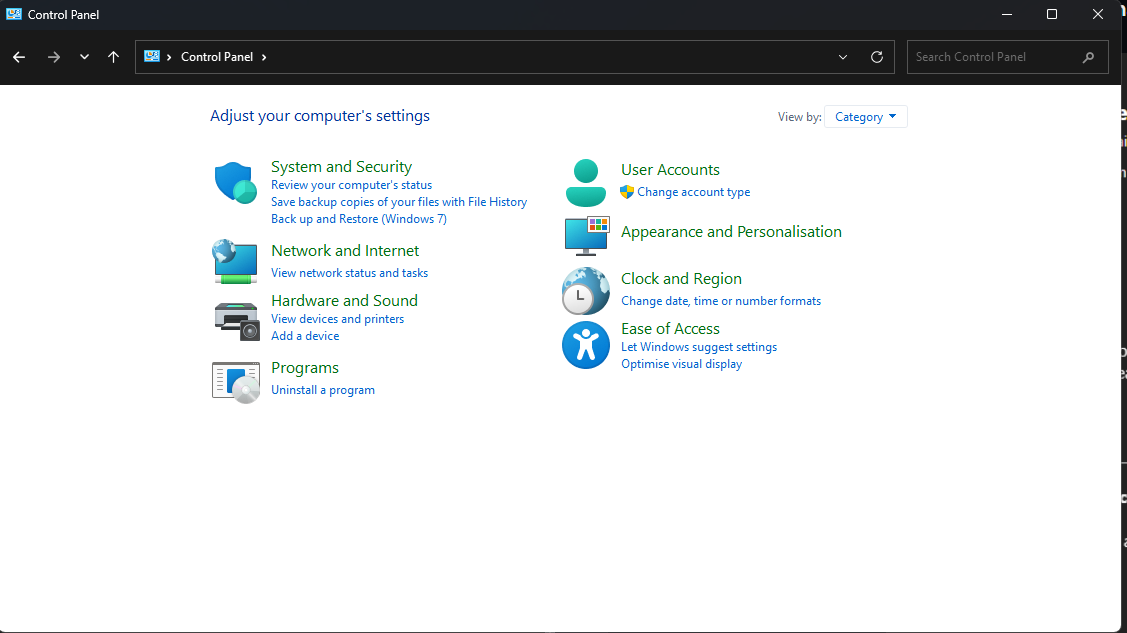
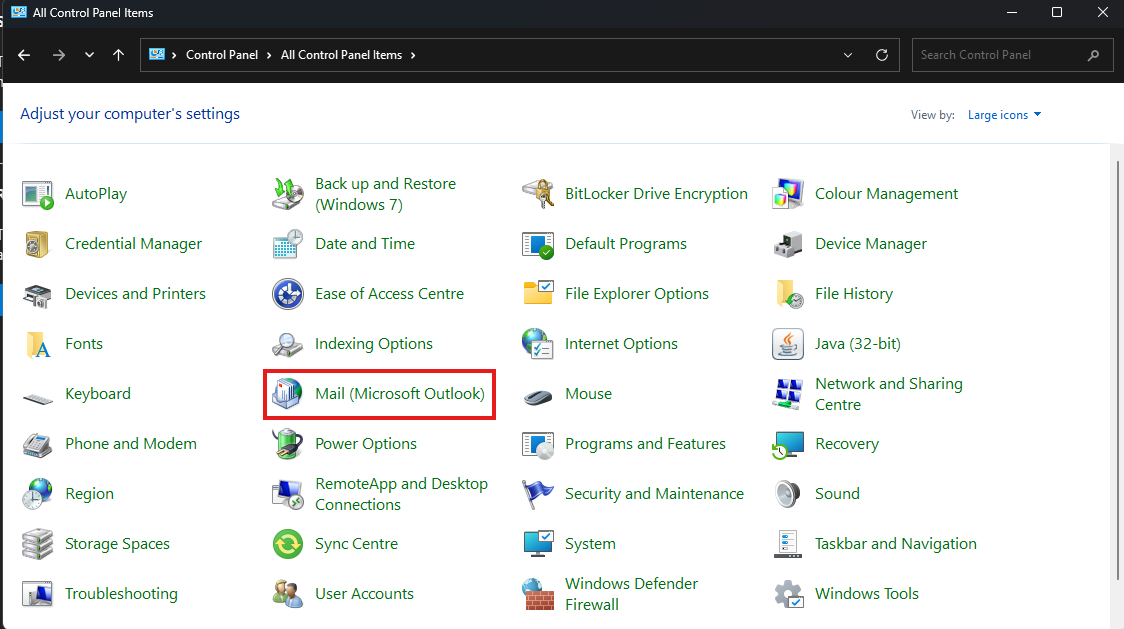
Ensure the View by is set to 'Large Icons' or 'Small Icons'.
Then click on Mail (Microsoft Outlook) within the different options.
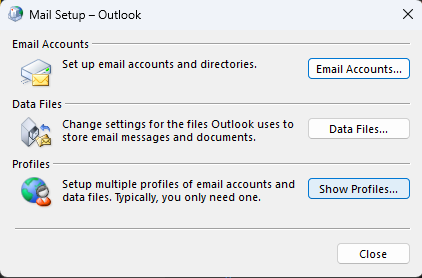
Then select 'Show Profiles'.
Ensure that 'Prompt for a profile to be used' is selected. Make sure to press 'Apply' once selected.
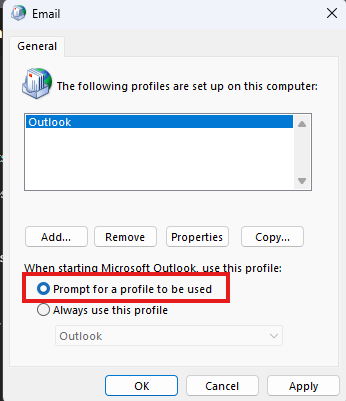
You can then either create a new profile above by clicking 'Add...' or by opening Outlook (Classic) and performing from the prompted menu, I'll choose the latter.
After seeing the prompt menu, click 'Options > >'.
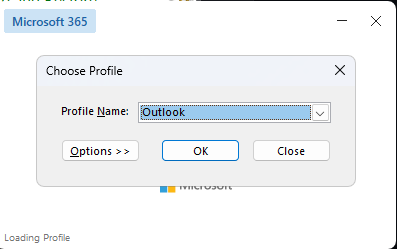
Then select 'New...'
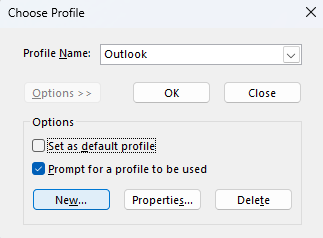
Give the profile a name, then click 'Ok'.
A login box will appear, enter the name of your Shared Mailbox or Identity. Then click 'Connect'.
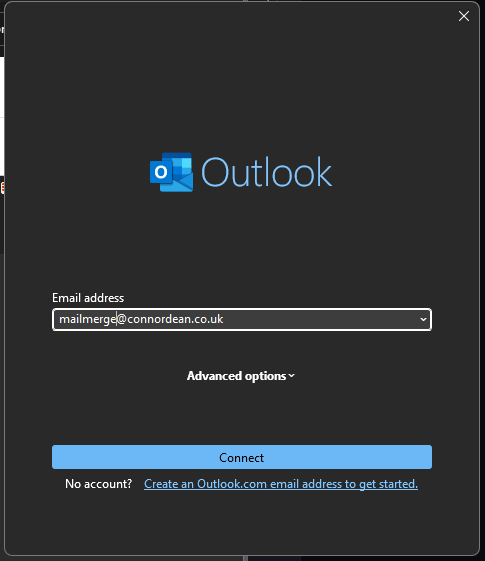
A Microsoft Login will appear, rather than entering a password for the Shared Mailbox we will select 'Sig in with another account'.
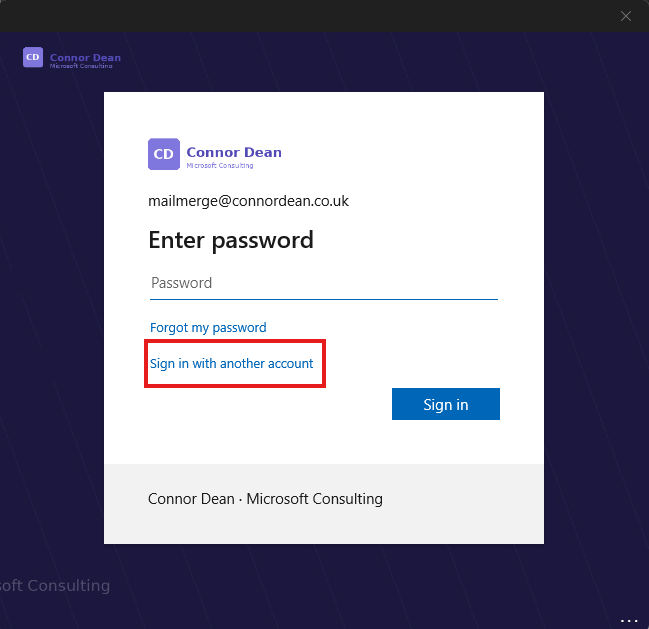
The user must then enter their own credentials and authenticate via their chosen method. (Passkeys for me ;))
Once authenticated, you will see the 'One moment' pop up and then the account should be successfully added.
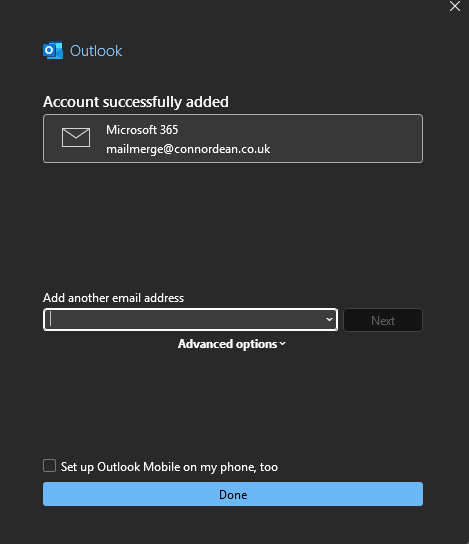
Click 'Done' then you can press 'Ok' to open your new mail profile.
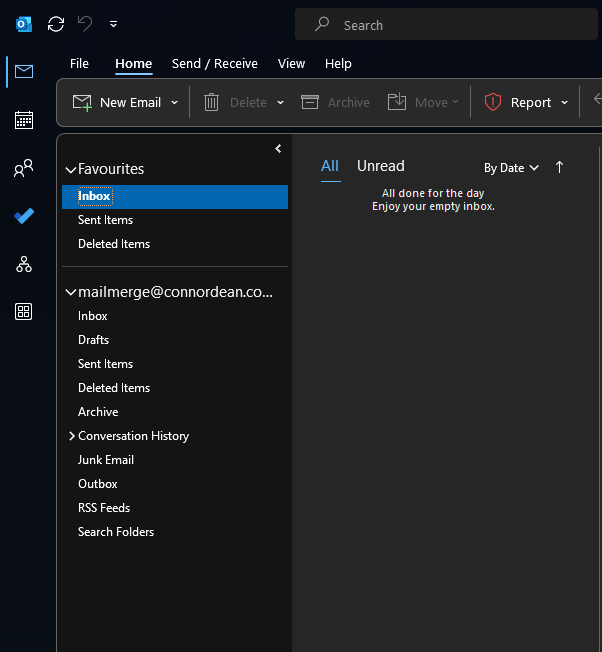
And we are in:
Final Thoughts
This is a fairly simple process but it's easy to feel blocked by the initial login prompt for the Shared Mailbox, because who assigns a password to a Shared Mailbox?
I would recommend noting that the user may see their signature applying in this mailbox since it has pulled their details through as well as the Shared Mailbox. To get around this, either configure a specific signature or turn the default off.